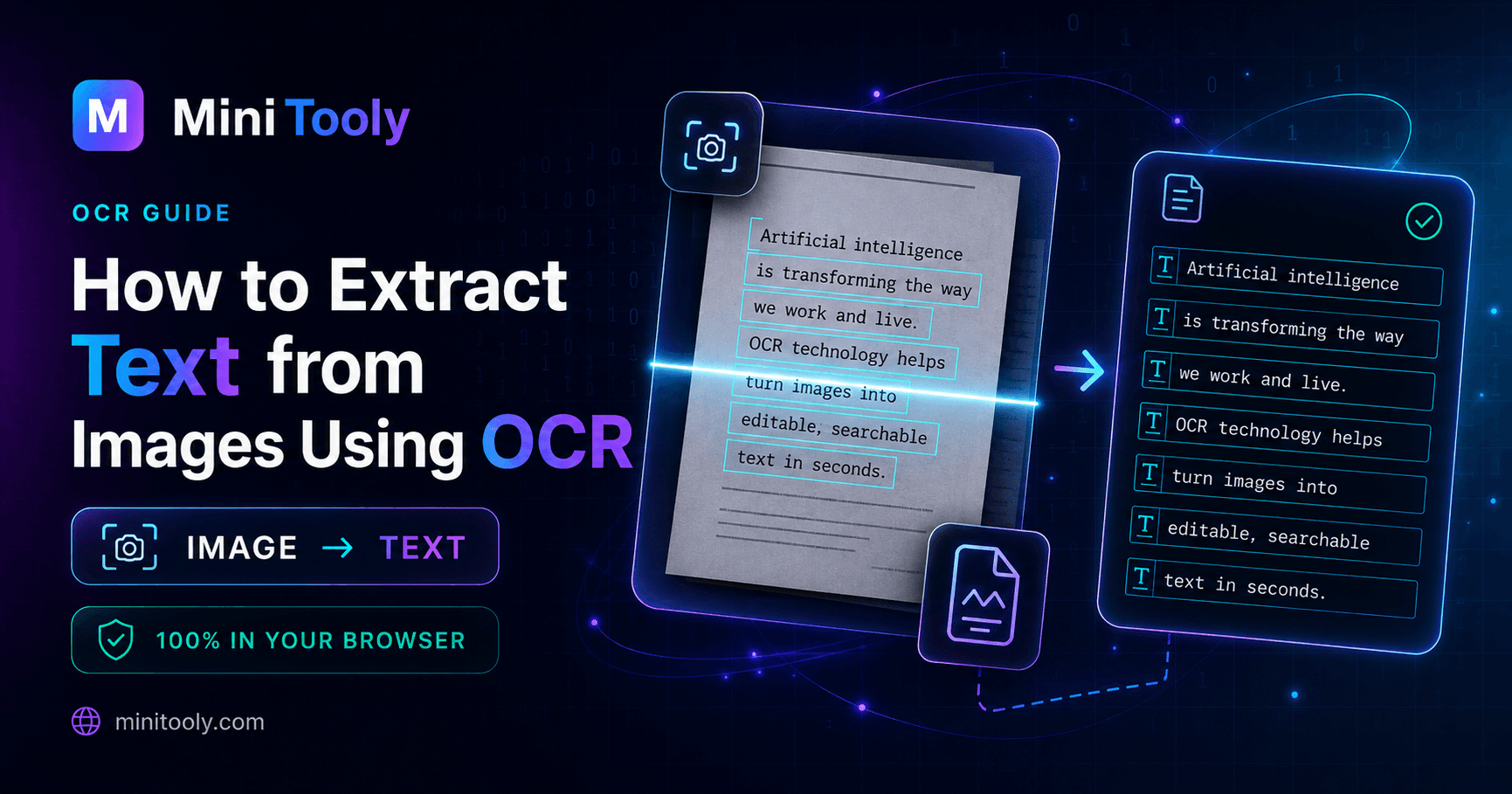
Understanding Image to Text Technology
In our digital workflows, we frequently encounter information trapped inside static images. Whether it is a photograph of a whiteboard during a meeting, a screenshot of an error message, or a scanned PDF of an old contract, this text is unsearchable and uneditable. Typing it out manually is tedious and prone to errors. This is where Optical Character Recognition (OCR) changes the game.
An image to text converter uses advanced OCR algorithms to scan visual graphics, identify individual letter shapes, and translate them into machine-encoded text. Instead of spending valuable time transcribing notes or receipts, you can upload the image and let automated software handle the heavy lifting.
How OCR Powers the Conversion Process
Optical Character Recognition is a sophisticated blend of computer vision and machine learning. When you feed an image into a modern converter, the software performs several key steps behind the scenes:
- Pre-processing: The tool cleans up the image. It adjusts contrast, straightens crooked angles, removes background noise, and converts color pixels into binary black and white. This ensures the text stands out clearly.
- Segmentation: The software analyzes the layout, dividing the image into blocks, lines, and eventually individual characters. It separates paragraphs from images and tables.
- Feature Extraction: Each character is examined for specific features—such as loops, lines, curves, and intersections.
- Classification & Matching: The extracted features are compared against trained databases of typography and fonts to predict the most likely character or word.
- Post-processing: Built-in dictionaries check the recognized words against common language patterns to correct minor misreadings.
Practical Steps to Extract Text Using MiniTooly
Using a web-based utility is straightforward. If you want to digitize your files quickly, you can try out the streamlined process on the MiniTooly platform. Here is how you can use a reliable image to text converter to get clean results:
- Prepare Your Image: Ensure the file is clear, well-lit, and properly oriented. Formats like PNG, JPG, and WebP work exceptionally well.
- Upload the File: Navigate to MiniTooly Image to Text Converter and upload your chosen image via drag-and-drop or file selection.
- Run the Extraction: Click the conversion button to trigger the OCR engine. The tool will parse the graphic elements in seconds.
- Review and Edit: Copy the generated text into your clipboard. Give it a quick read to verify formatting, punctuation, and alignment.
Common Use Cases Across Industries
The applications of text extraction span across numerous professional and personal domains:
- Students and Researchers: Quickly digitize pages from library books, historical archives, or whiteboard notes taken during lectures without retyping entire paragraphs.
- Office Workers and Administrators: Transform scanned invoices, paper receipts, and physical contracts into editable digital records for accounting or database entry.
- Accessibility Support: Convert images containing text into screen-reader-friendly formats, improving digital inclusion for visually impaired users.
- Travelers: Translate foreign street signs or restaurant menus by snapping a photo and running it through an OCR tool.
Limitations of OCR Technology
While modern OCR tools are remarkably accurate, they are not completely infallible. Understanding their limitations helps you set proper expectations:
- Handwriting Quality: Cursive or messy handwriting is significantly harder for algorithms to recognize compared to standard printed typography.
- Low-Resolution Graphics: Blurry, dark, or pixelated photos produce distorted character shapes, leading to garbled text output.
- Complex Layouts: Multi-column layouts, wrapped text around graphics, or unusual stylized fonts can sometimes confuse the segmentation phase, requiring manual clean-up.
Privacy and Security Considerations
When processing sensitive documents like tax forms, personal IDs, or proprietary contracts, data privacy is paramount. Always choose tools that respect user confidentiality. Reprocessed images should not be permanently stored on external servers without permission. Ensure the platform you use handles files securely and respects modern privacy standards.
Conclusion
Extracting text from visuals no longer requires tedious manual transcription. By leveraging automated optical character recognition, an efficient image to text converter saves hours of repetitive work. Whether you are archiving receipts, digitizing study materials, or processing screenshots, mastering these tools empowers you to streamline your daily digital tasks with speed and precision.